Add a backup key to your Swaps Wallet, and use it to get back into your wallet if you lose your wallet key.
Screens from Swaps. Names, amounts and times are examples.
Chapter 1 · A new wallet
Step 1 · Create your wallet
Your wallet key comes first. Then your wallet’s home offers a second passkey: your backup key.
Example
“Set up your wallet” · “Next, we’ll ask for a second passkey as a backup.”
System prompt: your device asks you to create a passkey for Swaps: your wallet key, saved as “Swaps Wallet · …”.
If you see…
“Your wallet exists. It’s taking a moment to appear.” Your wallet is created. Choose “Check again”.
“You canceled the passkey prompt.” Choose “Create wallet” again.
Step 2 · Your wallet offers a backup key
Your wallet’s home offers it on every visit. “Not now” hides it until your next visit, and Add money and Receive don’t wait for it. If you lose your wallet key and have no other key, you lose access to your money: Swaps has no copy.
Example
“Add a backup key” · “Add backup key” · “Not now”
Money: nothing moves, and Swaps pays the network fee of adding it.
If you see…
“Confirm your backup key”: you added a backup key and haven’t signed with it yet. Choose “Confirm backup key”.
“Can’t add a backup key now”, in place of the offer: Swaps can’t pay the network fee at the moment. Try again later.
When you open Receive or another new way to pay in: “Confirm your key”. That’s one signature with your wallet key, not a backup key (why).
Chapter 2 · Add your backup key
Step 3 · Choose “Add backup key”
You’ll find it in the offer on your wallet’s home. Wallet options and Settings › Passkeys have “Add” next to Backup key.
Example
“Add a backup key” · “A second passkey for this wallet, kept somewhere else.”
Money: nothing moves. Swaps pays the network fee, for up to three backup keys per wallet. You can delete the key later.
If you see…
“Swaps can’t add another backup key” · “This wallet used its paid adds. Contact support.”
“Can’t add a backup key now” · “Swaps can’t cover the network fee right now. Contact support.”
You chose “Not now”: nothing was added, and the offer stays on your wallet’s home.
Step 4 · Create the backup passkey, then approve it with your wallet key
Save the backup somewhere other than your wallet key: another device, another password manager or a security key.
Example
Example“Choose another device or password manager.”Example“Now approve with your wallet key.”
System prompt 1: save it in the place you picked, not where your wallet key is.
System prompt 2: choose your wallet key, “Swaps Wallet · …” (older wallets: “Swaps Tempo Wallet”). A phone that holds it can approve from the prompt.
If you see…
“That’s where your wallet key is” · “Choose another device or password manager. Nothing was added.”
“Nothing was added” · “The passkey prompt didn’t finish.” Choose “Try again”.
“Passkey saved, not added yet” · “Approve it here, or where this wallet’s key lives.” “Try again” asks only for your wallet key’s approval.
“That’s not this wallet’s key” · “Approve with this wallet’s passkey. Nothing was added.”
“Couldn’t reach Tempo” · “We’ll read your wallet again before retrying.”
“Nothing was added” · “Swaps couldn’t start this. Try again later.”
“This device’s clock looks wrong” · “Turn on automatic date and time, or try again.”
Step 5 · Sign once with your backup key
This checks that your backup works. It’s a signature, not a payment: no money moves, there’s no fee and nothing to undo.
Example
Example“Backup key added” · “Sign once with it to confirm it works.”Example“Choose your backup key in the prompt.”
System prompt: choose your backup key, “Swaps backup key · …”, not your wallet key.
If you see…
“Not confirmed yet” · “The prompt didn’t finish. Your backup is added.” Choose “Confirm backup key” when you’re ready.
“Not confirmed yet” · “Swaps couldn’t start the check. Your backup is added.”
“Backup key not confirmed” · “That passkey didn’t sign as this wallet’s backup.” Choose the backup key, not the wallet key.
Step 6 · Your backup key is confirmed
Swaps says “Confirmed” only after Tempo shows the key. Your wallet’s home stops offering one.
Example
Example“Backup key confirmed” · “Saved as “Swaps backup key · Nov 3 · 7F3A”.”Exampleyour wallet’s home, without the offerExample“Backup key” · “Confirmed”
If you see…
“Couldn’t read the network” Nothing is known about the key until a read works. Choose “Try again”.
Chapter 3 · Lost your wallet key? Get back in
Step 7 · Sign in to the same Swaps account on another device
Same Swaps account, another device or browser. Your wallet’s home opens without your wallet key.
Example
Example“I can’t find my key”Example“I can’t find my key” · “Use your backup key to get back in.”Example“Find your wallet key” · “Lost it, or someone else has it? Use your backup.”
Another Swaps account? No. Only the Swaps account that owns the wallet can use its backup key.
If you see…
From Send, with a balance: Send asks for your wallet key, which this device doesn’t have. Close the prompt; after two tries Swaps shows “Find your wallet key”.
“Set up your wallet” This account has no wallet. Sign in to the account that owns it. A new wallet is a new address.
No “I can’t find my key”: Tempo shows no backup key on this wallet, or Swaps couldn’t read it yet. Wait, then try again. Send then ends with “Only your passkeys can move these funds. They stay on Tempo at 0x4b9e…0f62.”
“Backup not confirmed yet” · “Your backup isn’t confirmed yet. It may still work.”
Step 8 · Choose “Lost”
“Lost” if you can’t find your wallet key and no one else has it. If someone else may have it, go to step 12.
Example
“Lost or stolen?” · “Tell us what happened to your wallet key.”
If you see…
“This wallet is marked stolen” · “Move your balance out, or contact support.” A wallet reported stolen has no “Lost” path. Go to step 12.
Step 9 · Start “Get back into your wallet”
Your backup key adds a key for this device. Swaps calls it “this phone’s key”, on a laptop too.
Example
“Get back into your wallet” · “Your backup key adds this phone’s key.”
Money: nothing moves. Swaps pays the network fee, for up to three device keys per wallet; deleting one later is paid from your balance.
If you see…
“All phone keys are used” · “This wallet can’t add another phone key. Contact support.”
“Can’t add this phone’s key now” · “Swaps can’t cover the network fee right now. Contact support.”
“A key is on its way” Wait for the time it shows. Swaps reads Tempo again by itself.
“A key waits for its check” A key from an earlier visit: “Confirm this key”. If this device doesn’t have it, close the prompt, then “Add a key here”.
Step 10 · Save this device’s key, approve it with your backup key, sign once
Three passkey prompts in a row. Keep this device’s key apart from your backup key.
Example
Example“Save the new passkey on this phone.”Example“Now approve with a key of this wallet.”Example“This phone’s key is added” · “Sign once with it to confirm it works.”Example“Choose this phone’s key in the prompt.”
System prompt 1: save it on this device, not where your backup key is. It’s named “Swaps device key · Nov 3 · 2C9E”.
System prompt 2: choose your backup key, “Swaps backup key · …”.
System prompt 3: choose the key you just saved on this device.
If you see…
“The prompt didn’t finish” · “Nothing was added. Try again when you’re ready.”
“Passkey saved, not added yet” · “Approve it with your backup key to finish.”
“That’s where your backup is” · “Choose a different place to save it. Nothing was added.”
“That’s not this wallet’s backup” · “Choose your backup key in the prompt. Nothing was added.”
“Not confirmed” · “That passkey didn’t sign as this phone’s key.”
“Your backup key doesn’t work now” · “Tempo doesn’t show it on this wallet. Contact support.” · “Whoever has your wallet key can remove the backup. Tell support what happened.”
“Nothing was added” · “Swaps couldn’t start this step. Try again later.”
“Couldn’t reach Tempo” · “We’ll read your wallet again before retrying.”
“This device’s clock looks wrong” · “Turn on automatic date and time, or try again.”
Step 11 · You’re back in
This device’s key can now send on Tempo. Other networks, Convert, Pay and bank payouts still need your wallet key.
Example
“You’re back in” · “Your wallet works on this phone again.”
If you see…
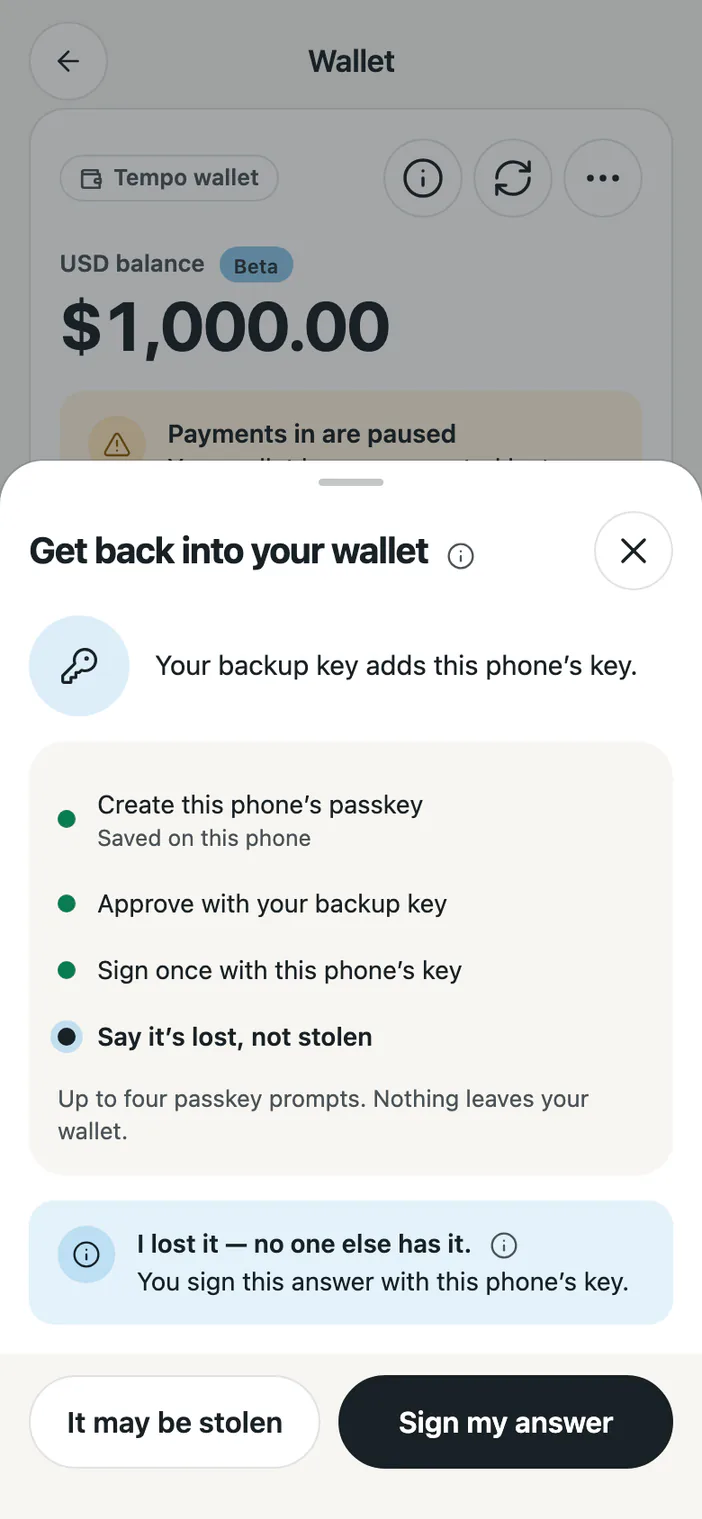
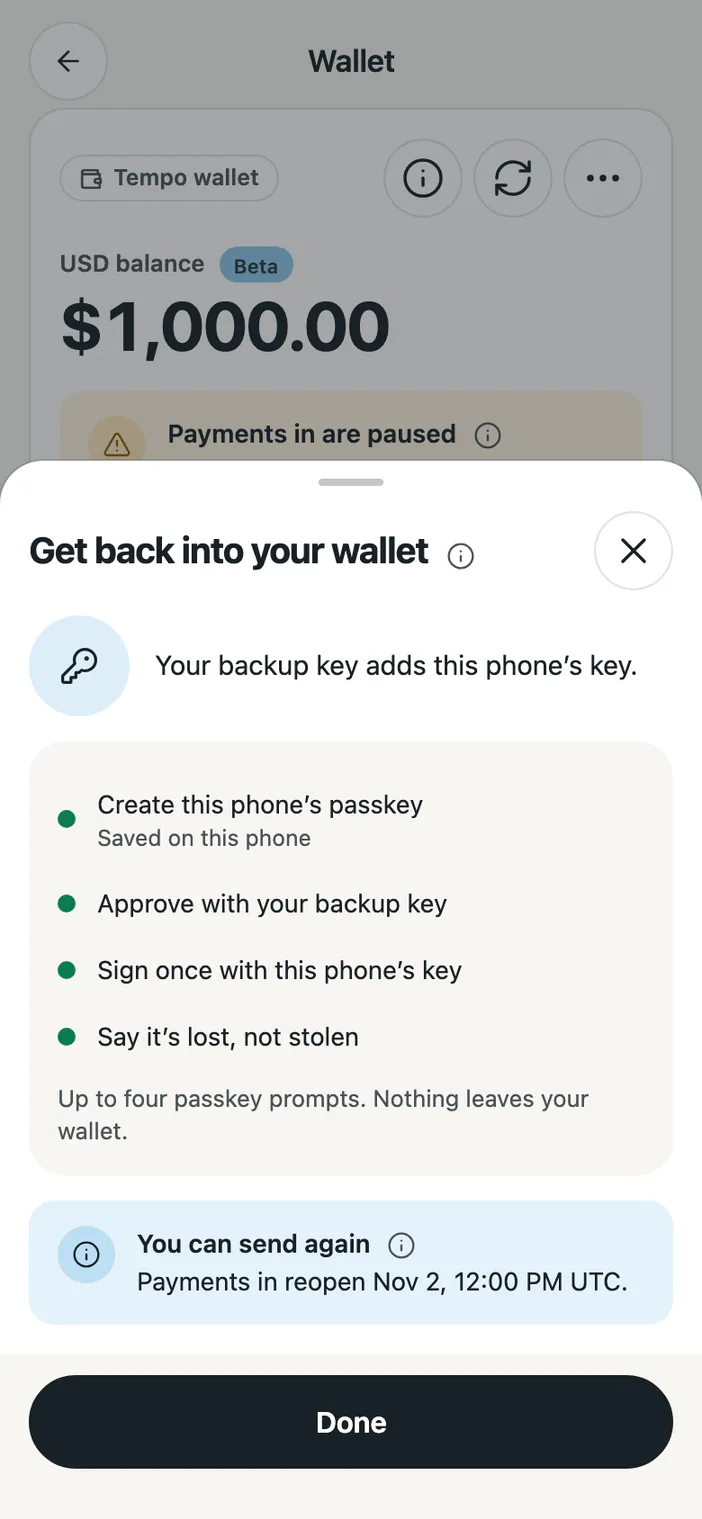
A fourth prompt, only if Swaps support recorded your wallet key as lost.
Example
Example“I lost it — no one else has it.” · “You sign this answer with this phone’s key.”Example“You can send again” · “Payments in reopen Nov 2, 12:00 PM UTC.”
System prompt 4: choose this device’s key to sign your answer. Money: the answer is a signature; no money moves and there’s no fee. Payments in then wait up to 24 hours for a Swaps check. If you later think someone else has your key, choose “Stolen”.
“You can send again” · “Payments in await a Swaps check.”
“You can send again” · “Payments in stay closed. Contact support.”
“You can send again” · “Swaps support will finish this.” Swaps support decides about payments in. Contact support.
“Not confirmed” · “That passkey didn’t sign for this wallet. Nothing changed.”
Chapter 4 · If someone else may have it
Step 12 · Report it, then move your balance
A backup key helps if your wallet key is lost, not stolen: whoever has your wallet key may move the money first. Act now.
Example
Example“Act now” · “Whoever has your key may move the money first.”Example“Reported. Now move your balance” · “Payments in are being frozen.”
Example
Example“Move your balance” · “Your backup key moves your balance to a new address.”Example“It goes to this address. Swaps can’t move it back.”Example“Sent — confirmed on Tempo”
System prompt 1: to report, choose your backup key, “Swaps backup key · …”.
System prompt 2: to sign the move, choose your backup key again.
Money: reporting is a signature: free, and it can’t be undone. The move sends your balance to the address you enter, in one transaction; the network fee, up to what the review shows, comes from your balance. It can’t be undone.
If you see…
You chose “Later”: choose “I can’t find my key”, then “Stolen”. Swaps shows “Reported. Now move your balance” without asking for your backup key again. Choose “Move your balance”.
“The prompt didn’t finish” · “Nothing was reported. Act soon if it may be stolen.”
“Not confirmed” · “That passkey didn’t sign as your backup. Nothing was reported.”
“Report it to support” · “Your backup can’t report it now.” Contact support now.
“Your backup key doesn’t work now” Whoever has your wallet key may have removed it. Contact support now.
“Enter a Tempo address: 0x and 40 characters.” · “That’s this wallet. Choose a new address.” · “That’s a token contract. Paste a wallet address.” · “This address can’t receive money. Check the address.”
“Nothing was sent” · “The passkey prompt didn’t finish.”
“Nothing was sent” · “Tempo reverted it. At most the network fee was spent.” Nothing reached the address; the network fee may have been paid.
“Check this send” · “We couldn’t confirm it on Tempo. Check Activity first.”
“Nothing was sent” · “Swaps couldn’t prepare it. Review again for a fresh quote.” or “Your balance changed. Review it again.”
“The rest stays on this wallet.” A token that couldn’t go in that transaction stayed here, as the review showed. “Move the rest” sends it in another transaction, with its own network fee from the balance.
“Nothing to move” · “This wallet’s balance can’t cover the network fee.”